Liferay Batch Imports Audit: Knowing What Happened to Your Data
Liferay’s Batch Engine is how you move data in bulk without hammering REST endpoints one record at a time: you POST, PUT, or DELETE an array of items against a batch endpoint — for Objects, Commerce catalogs, channels, product specifications, and more — and the engine queues the work, processes it asynchronously, and tracks each task through INITIAL → COMPLETED or FAILED.
That model is exactly right for external systems pushing thousands of records without waiting on a synchronous response. It also raises an obvious question the moment something goes wrong: once you’ve fired that batch off, how do you actually know what happened to it?
Where this bites in practice
The problem shows up clearly in a common B2B commerce setup:
- Product data — categories, specifications, products, pricing — lives in an external PIM system, which is the actual source of truth.
- Integration middleware reads from the PIM and calls Liferay’s Headless Batch APIs to keep Liferay in sync.
- Liferay is a consumer here, not the source of truth.
Batches fail for a handful of predictable reasons: invalid data (format or type mismatches), duplicate data (an external reference code or unique field that already exists), or internal Batch Engine errors like timeouts and constraint violations.
None of that is the hard part. The hard part is that Liferay doesn’t ship a UI for any of it. When an integration team reports a failed sync, troubleshooting means digging through application logs or running direct database queries — assuming you even have environment access to do either.
The frustrating bit is that the data you need already exists. Every batch task’s status, timing, item counts, and errors are persisted in two tables the Batch Engine writes to on its own: BatchEngineImportTask and BatchEngineImportTaskError. It’s all there — it’s just invisible to anyone without a database console.
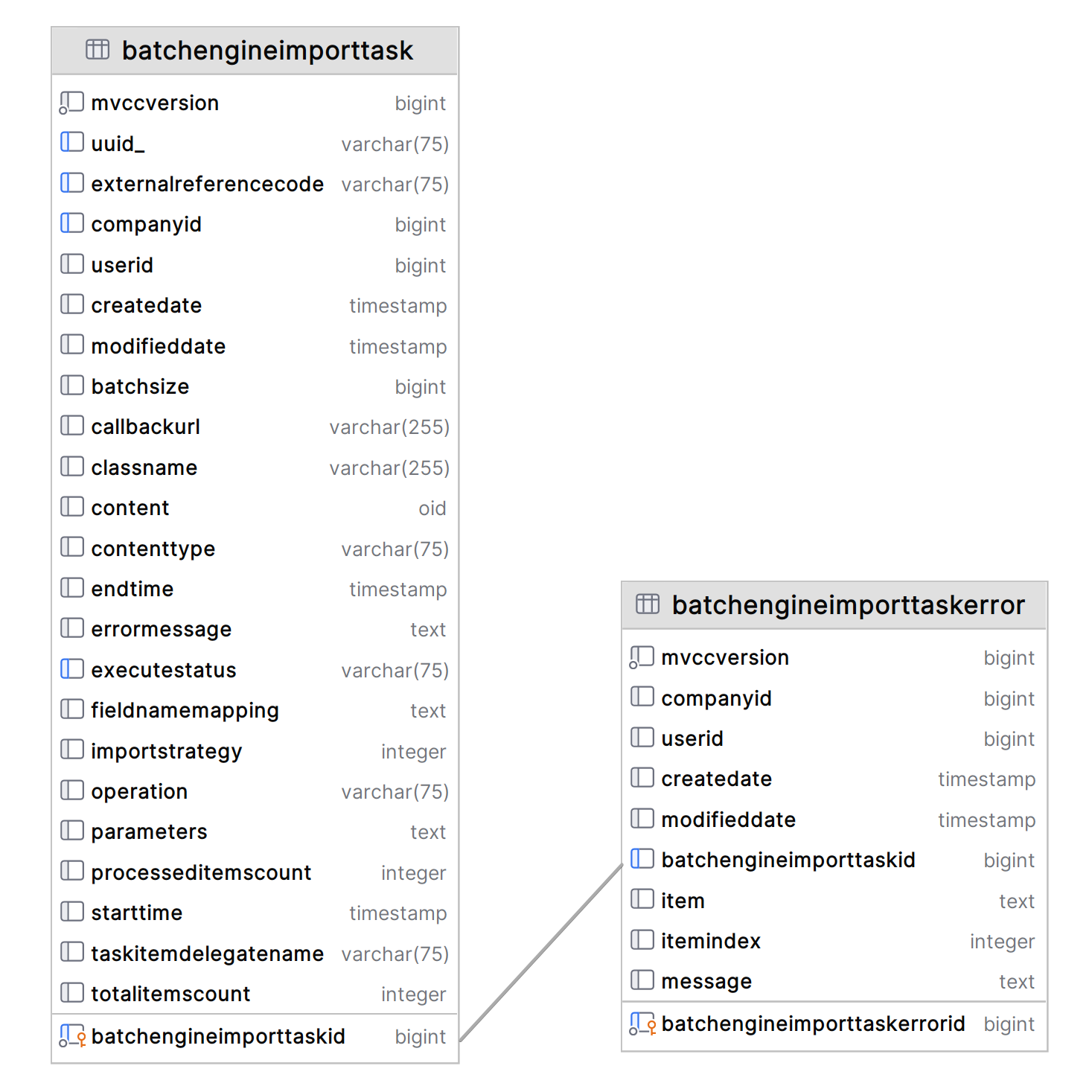
The Batch Engine already records everything it does in these two tables — the data was never the problem, visibility was.
Batch Import Audit: a window onto data that already exists
Batch Import Audit doesn’t change how the Batch Engine behaves. It’s a Control Panel application — filed under a new Monitoring category — that reads those two tables and gives support engineers, integration developers, and admins a way to inspect them without ever opening a database client.
The data model maps directly onto what’s already there:
BatchEngineImportTaskis the list source — one row per import task, with class name, execute status, the user or integration account that kicked it off, start/end time, and total items versus items actually processed.BatchEngineImportTaskErroris the failure-detail source — record-level information about exactly which item failed and why.
The list view: find the task
Every import task shows up chronologically, newest first, with filters for:
- Initiator — the user or integration account that started the task
- Execute Status — completed, failed, in progress
- Class Name — the entity type: catalogs, channels, products, and so on
- External Reference Code — jump straight to the tasks touching a specific record
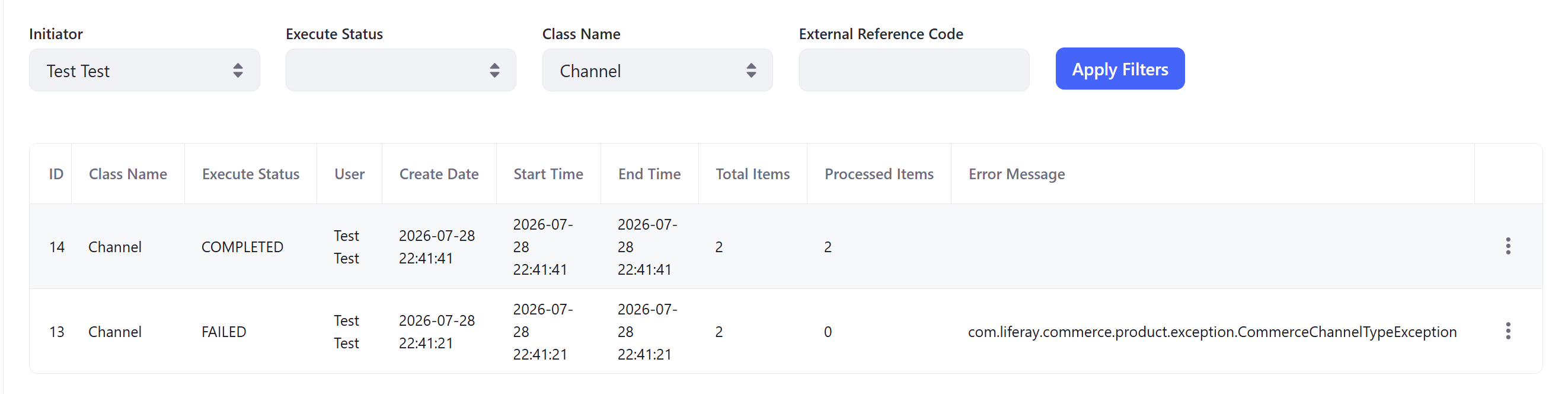
No more scrolling logs to find one failed sync — filter by initiator, status, entity type, or reference code and go straight to it.
The details view: find out why
Opening a task gets you everything you’d otherwise need log access or a DBA to piece together:
- Full task metadata — batch size, content type, import strategy, operation, and timing
- The original request payload, unpacked and formatted exactly as it was submitted
- Task-level error information, plus every underlying error record for a failed task
- The ability to copy the failed batch content straight out — handy for dropping into an IDE or an AI tool for further analysis
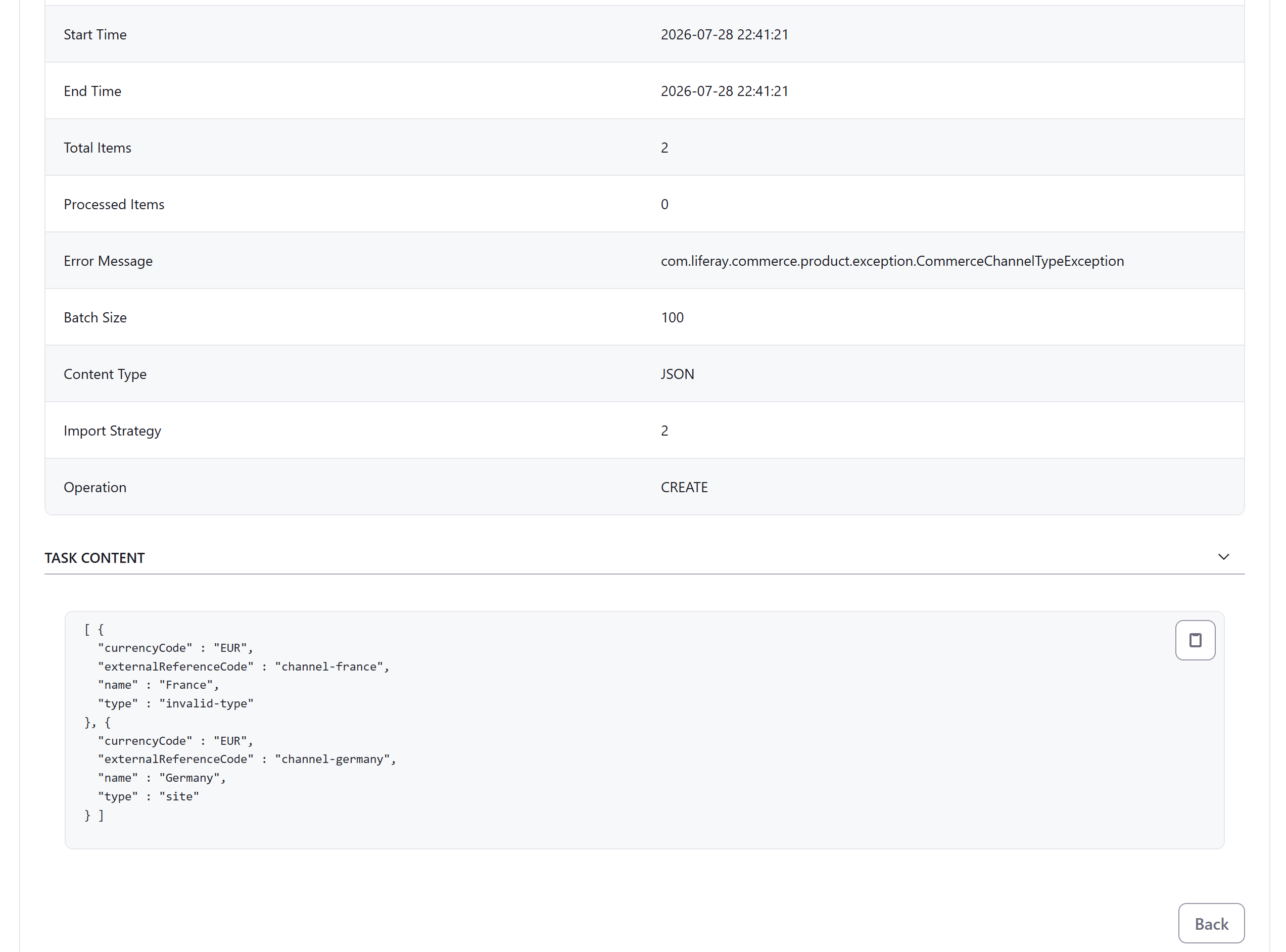
Everything needed to explain a failure to an integration team — payload, timing, and the exact error — in one screen instead of a support escalation.
Tracing a single record
Since Liferay is the consumer here and the PIM is the source of truth, the question integration teams actually ask is usually narrower than “did the batch work” — it’s “did this specific product make it through.” Searching by External Reference Code answers that directly, surfacing the task (and any error) tied to that one entity.
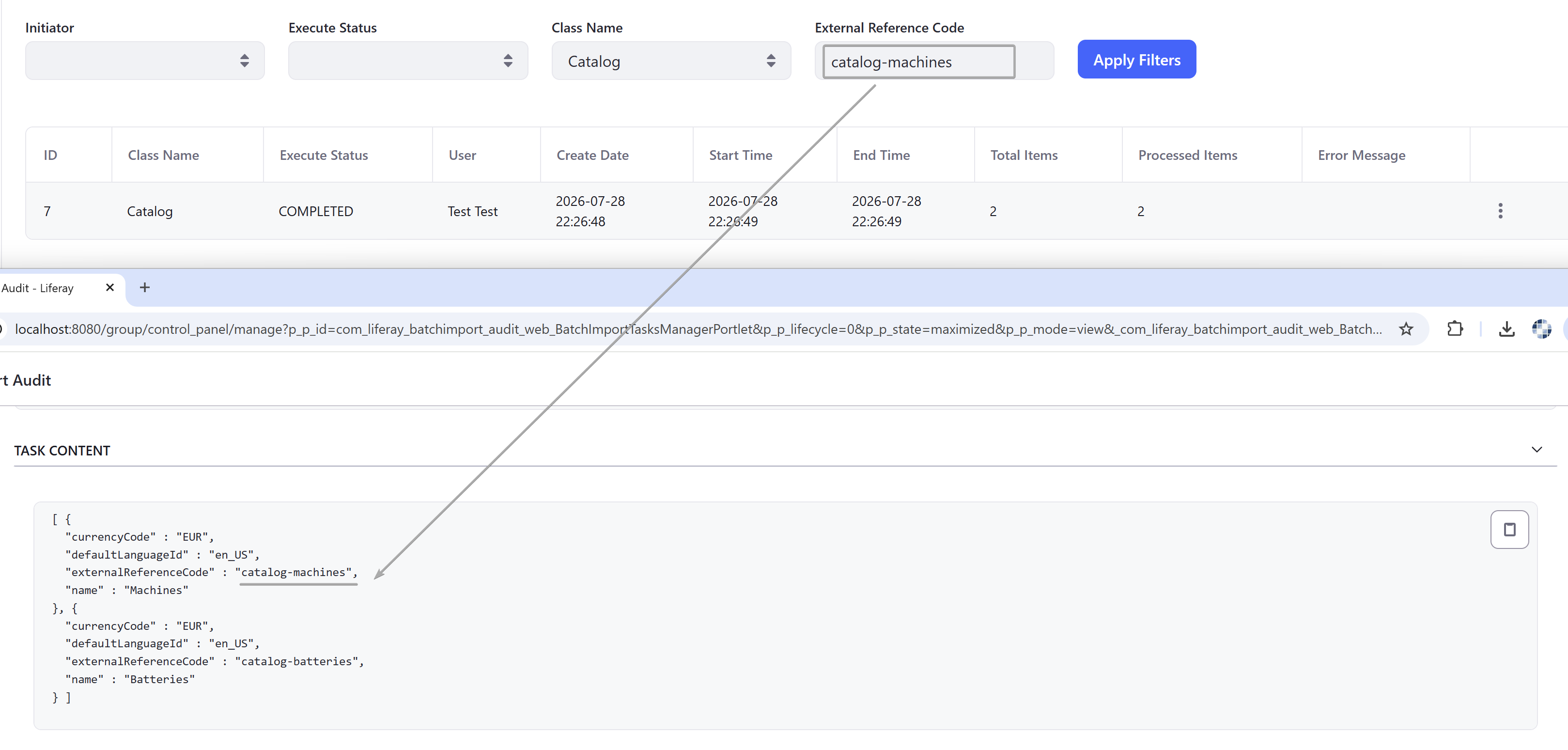
One reference code, one task — no need to reconstruct which batch a given product belonged to.
Takeaway
Batch Import Audit doesn’t add anything new to what the Batch Engine tracks — it just stops throwing that information away behind a database wall. For any team running Liferay as a consumer of an external system of record, that turns “did my batch even work?” from a support ticket and a SQL query into a filter and a click. The implementation is published as a public repository, so it’s meant to be adapted rather than used as-is.
This article is LR Tools’ adaptation of the original write-up by Vitalii Koshelenko — read the full post on Liferay.dev for the author’s own framing.
This article is adapted from: Vitalii Koshelenko, Liferay.dev